Downloading Reports
How to access and download the final PDF of an approved inspection report.
Once all audit stages are complete, you generate the inspection report from the Inspection queue. The process has three steps: select which units to include, choose supporting photos for each checkpoint, then generate and send the report for review.
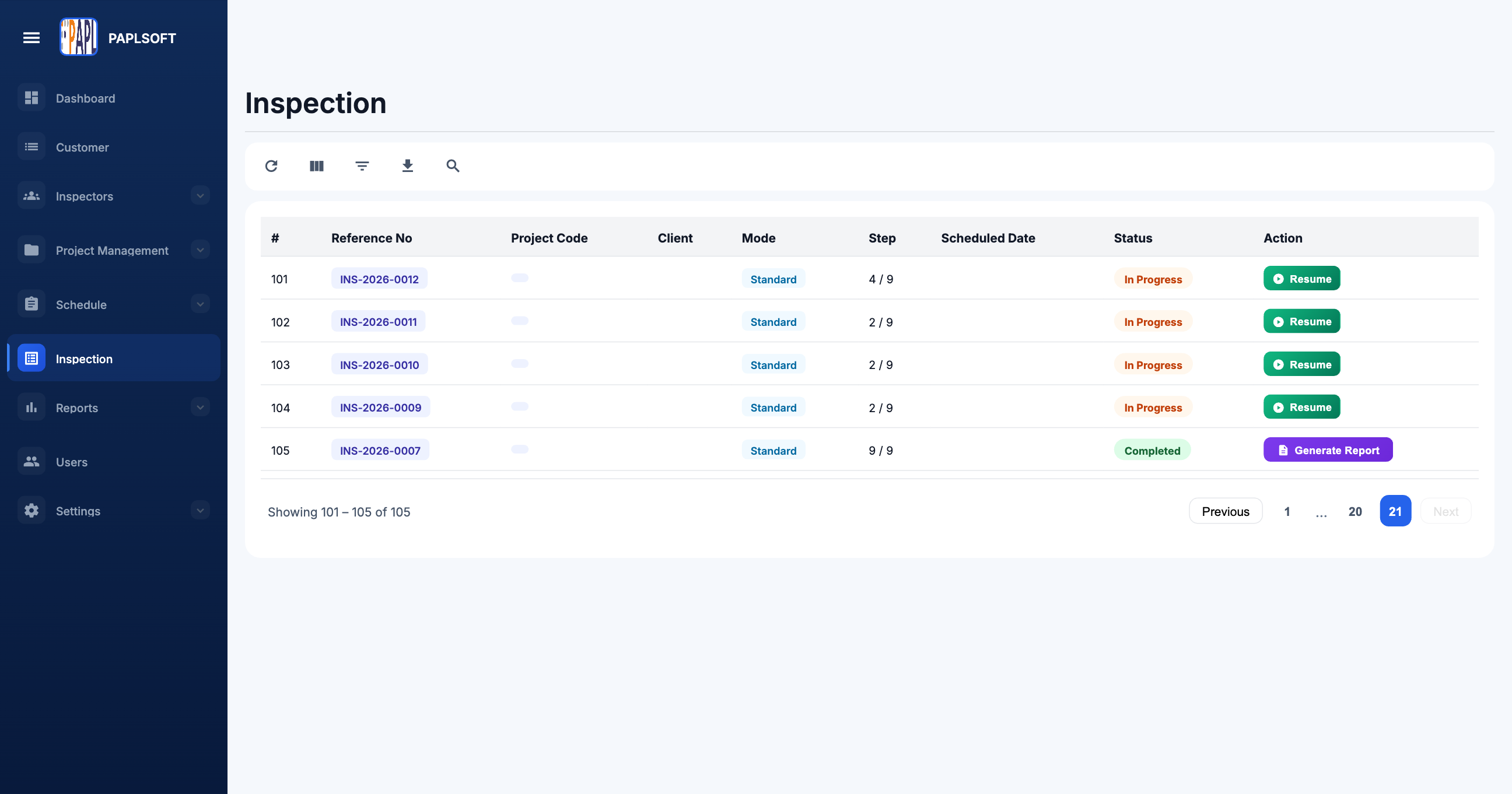
Generating the Report
Click Generate Report
From the Inspection queue, click Generate Report on any Completed inspection. You are taken to the Inspection Responses page.
Select units and photos
You can include up to 4 units and select 1–4 photos per checkpoint. Each checkpoint row shows the observations recorded during the audit. Choose the photos that best support each finding.
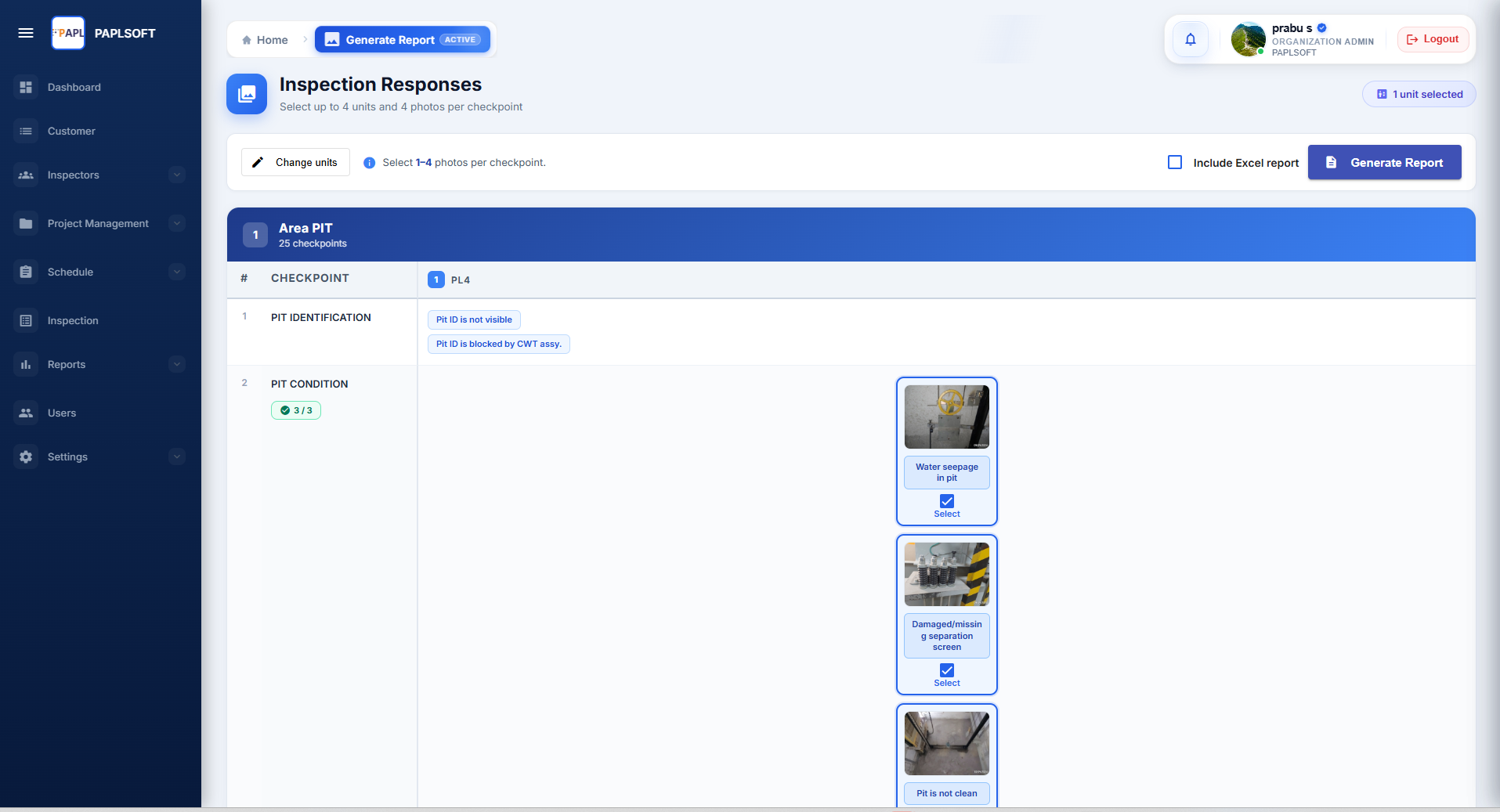
Click Generate Report
Once you have selected your units and photos, click the Generate Report button in the top-right corner. You can also tick Include Excel report to receive an Excel version alongside the PDF.
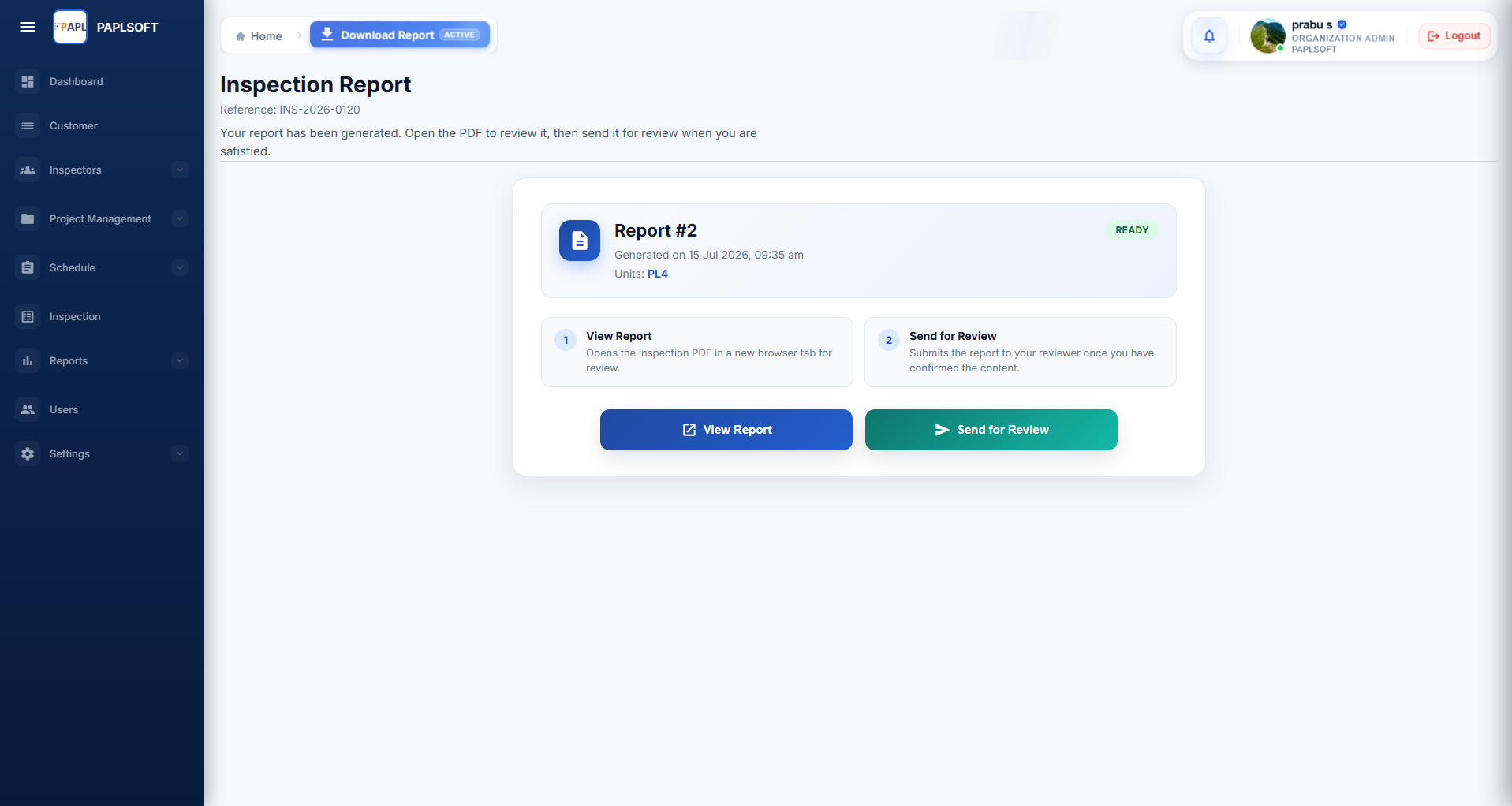
What the PDF Contains
- Cover page with property details, inspection date, and inspector credentials
- Findings for each checkpoint with observation notes and selected photos
- All unit details and calibration equipment records
- Inspector attestation and digital signature