Handling Returned Reports
What to do when an administrator sends your report back for revisions.
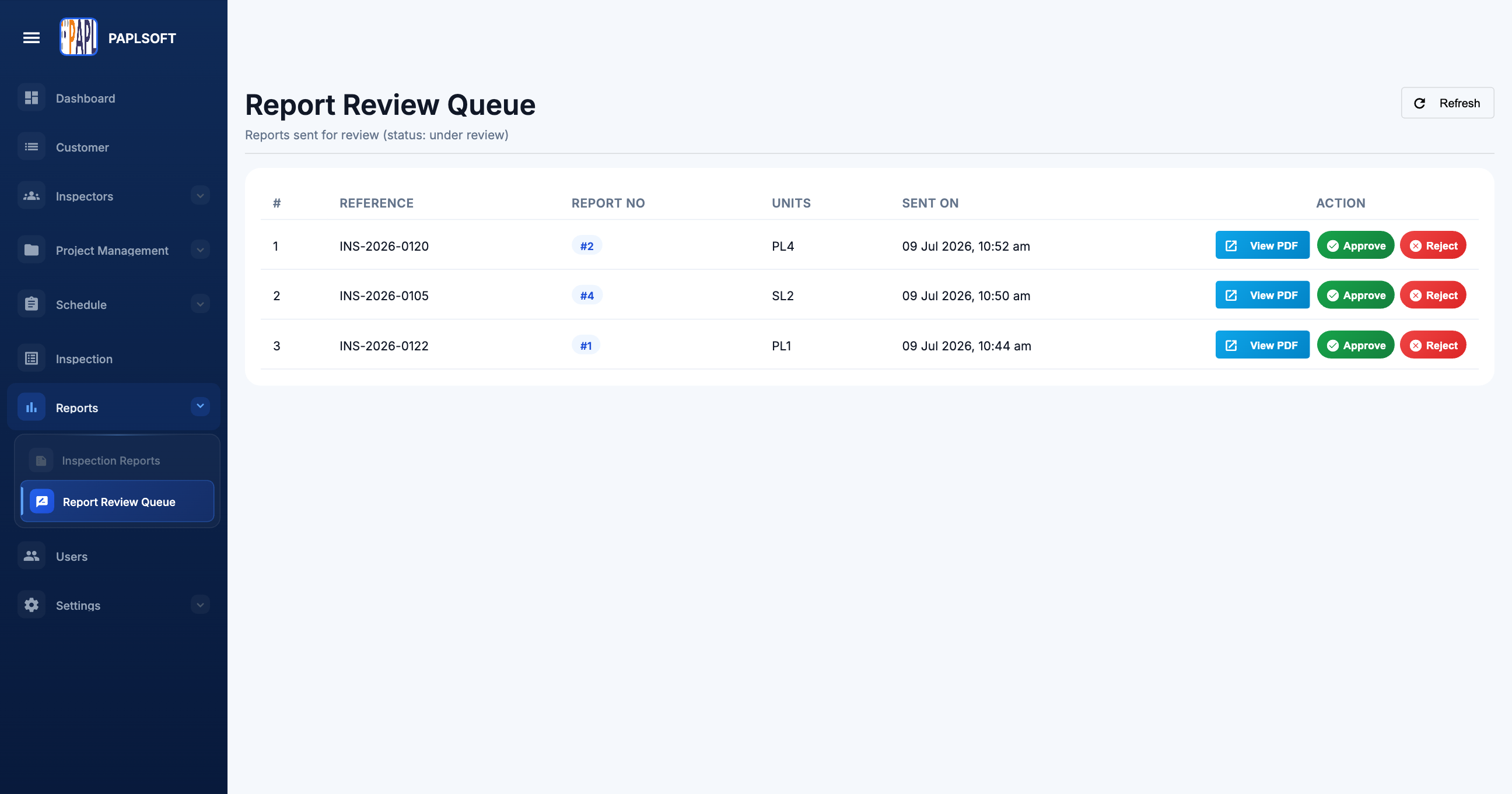
If an administrator finds issues with your submitted report, they will return it to you with comments. Your inspection status changes to Returned and you will receive a notification.
Understanding the Revision Request
When you open a returned report, you will see a Revision Comments panel at the top listing each issue the administrator flagged. Each comment is tied to a specific section or item in the report.
Making Revisions
Open the returned inspection
From your queue, click Open on any inspection with Returned status.
Review all revision comments
Read each comment carefully. Click a comment to jump directly to the flagged item.
Make the requested changes
Edit notes, upload additional photos, correct violation codes, or update any other flagged fields.
Mark comments as resolved
After addressing each comment, click Mark Resolved to track your progress. All comments must be resolved before resubmission.
Resubmit
Go to the Review & Submit screen and click Resubmit Report. The report re-enters the administrator's queue.